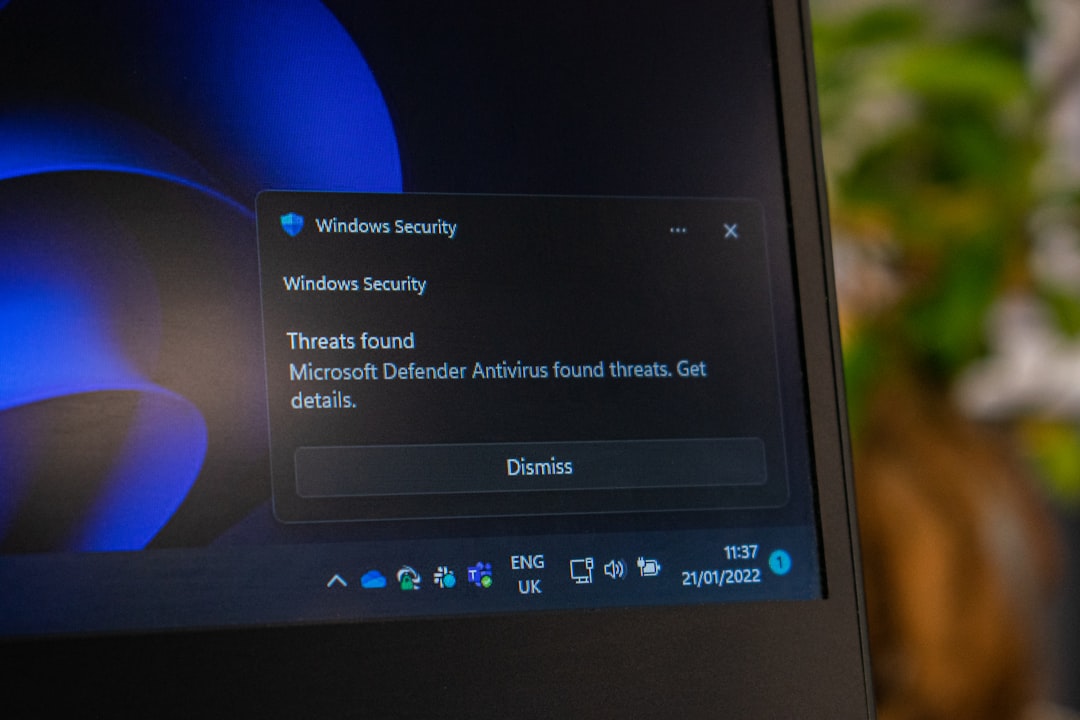
Windows 11 arrived with a philosophy: monetise the desktop. Ads in the Start menu. Suggested apps you didn't install. Notifications pushing Game Pass and Copilot. If you're running Windows on a work machine or a homelab, this behaviour ranges from annoying to actively counterproductive.
The good news: most of it can be disabled. The bad news: Microsoft has scattered the controls across five different settings panes and group policy, and some toggle back on after major updates. This article walks through the cleanest, most durable approach I've found after disabling ads on roughly 40 machines over the past two years.
The Start menu and recommendations
The Start menu is the first place ads appear. Microsoft calls them "recommendations"—suggested apps, recent files, and promotional tiles that you never asked for.
Open Settings > Personalisation > Start and disable these toggles:
- Show recommendations and personalised ads in Settings
- Show recently opened items in Start, Jump Lists, and File Explorer
- Show suggestions occasionally in Start
That's the GUI path. If you're managing multiple machines, group policy is faster. Open gpedit.msc (Windows Pro and above; Home edition doesn't have it) and navigate to:
User Configuration > Administrative Templates > Windows Components > Cloud Content
Set these policies to Disabled:
- Turn off Microsoft consumer experiences
- Turn off all spotlight features
- Turn off suggested apps
If you're on Windows 11 Home, you'll need to edit the registry directly. Open regedit and navigate to:
HKEY_CURRENT_USER\Software\Policies\Microsoft\Windows\CloudContent
Create a DWORD called DisableWindowsConsumerFeatures and set it to 1. Then create another DWORD called DisableSpotlightCollectionOnDesktop and set it to 1.
Restart Explorer (right-click the taskbar, select Task Manager, find Windows Explorer, click Restart) to apply changes immediately.
Notifications and Copilot
Windows 11 22H2 and later ship with Copilot enabled in the taskbar. It's a persistent notification icon that most technical users will never use. Disabling it is straightforward.
Go to Settings > Personalisation > Taskbar and toggle off Copilot. Done.
For notifications more broadly, navigate to Settings > System > Notifications and disable:
- Show suggestions occasionally
- Get tips and recommendations when you use Windows
- Suggest ways I can finish setting up my device to get the most out of Windows
The last one is particularly aggressive—it resurfaces setup prompts and OneDrive upsells months after installation.
Uninstalling bloatware
Windows 11 ships with roughly 15–20 pre-installed apps that most people never open: Candy Crush Saga, Clipchamp, Feedback Hub, News, Weather, and others. You can uninstall them via the GUI, but a PowerShell script is more reliable and faster.
Open PowerShell as administrator and run this:
$apps = @(
  "Microsoft.CandyCrush",
  "Microsoft.Clipchamp",
  "Microsoft.GetHelp",
  "Microsoft.Getstarted",
  "Microsoft.MicrosoftEdgeDevToolsClient",
  "Microsoft.MicrosoftOfficeHub",
  "Microsoft.News",
  "Microsoft.OutlookForWindows",
  "Microsoft.Paint",
  "Microsoft.PowerAutomateDesktop",
  "Microsoft.Solitaire",
  "Microsoft.Windows.DevHome",
  "Microsoft.WindowsAlarms",
  "Microsoft.WindowsCamera",
  "Microsoft.windowscommunicationsapps",
  "Microsoft.WindowsFeedbackHub",
  "Microsoft.WindowsMaps",
  "Microsoft.WindowsSoundRecorder",
  "Microsoft.WindowsWeather",
  "Microsoft.Xbox.TCUI",
  "Microsoft.XboxApp",
  "Microsoft.XboxGameOverlay",
  "Microsoft.XboxIdentityProvider",
  "Microsoft.XboxSpeechToTextOverlay",
  "Microsoft.ZuneMusic",
  "Microsoft.ZuneVideo"
)

foreach ($app in $apps) {
  Get-AppxPackage -Name $app | Remove-AppxPackage
}
This removes the apps from your user account. If you're on a fresh install and want to prevent them from being installed for new users, run this as administrator:
$apps = @(
  "Microsoft.CandyCrush",
  "Microsoft.Clipchamp",
  "Microsoft.GetHelp",
  "Microsoft.Getstarted",
  "Microsoft.MicrosoftEdgeDevToolsClient",
  "Microsoft.MicrosoftOfficeHub",
  "Microsoft.News",
  "Microsoft.OutlookForWindows",
  "Microsoft.Paint",
  "Microsoft.PowerAutomateDesktop",
  "Microsoft.Solitaire",
  "Microsoft.Windows.DevHome",
  "Microsoft.WindowsAlarms",
  "Microsoft.WindowsCamera",
  "Microsoft.windowscommunicationsapps",
  "Microsoft.WindowsFeedbackHub",
  "Microsoft.WindowsMaps",
  "Microsoft.WindowsSoundRecorder",
  "Microsoft.WindowsWeather",
  "Microsoft.Xbox.TCUI",
  "Microsoft.XboxApp",
  "Microsoft.XboxGameOverlay",
  "Microsoft.XboxIdentityProvider",
  "Microsoft.XboxSpeechToTextOverlay",
  "Microsoft.ZuneMusic",
  "Microsoft.ZuneVideo"
)

foreach ($app in $apps) {
  Get-AppxProvisionedPackage -Online | Where-Object DisplayName -eq $app | Remove-AppxProvisionedPackage -Online
}
Note: Paint and Outlook are legitimate Microsoft apps. I include them because many users replace them with alternatives (Krita, Thunderbird). Remove them from the list if you use them.
Activity history and telemetry
Windows 11 logs everything you do—which apps you open, which files you access, which websites you visit—and syncs it to Microsoft's servers. This is separate from ads, but it's worth disabling whilst you're here.
Go to Settings > Privacy & security > General and disable:
- Tailored experiences
- Improve inking and typing
- Tailored ads
- Show me suggested content
Then navigate to Settings > Privacy & security > Activity history and uncheck Store my activity history on this device.
For telemetry, go to Settings > Privacy & security > Diagnostics & device usage and select Required diagnostic data (the minimum level). Disable Optional diagnostic data and Improve inking and typing by sending us your typing and handwriting data.
Preventing ads from returning after updates
Microsoft occasionally re-enables these settings after major feature updates (roughly twice yearly). If you're managing multiple machines, the most reliable approach is group policy.
On Pro and Enterprise editions, open gpedit.msc and navigate to:
Computer Configuration > Administrative Templates > Windows Components > Advertising
Set Allow suggested apps in Windows to Disabled.
For Home edition, create a scheduled task that runs the PowerShell commands above after each update. Open Task Scheduler, create a new task, and set the trigger to "At log on". Attach this script:
# Re-disable ads after updates
Set-ItemProperty -Path "HKCU:\Software\Policies\Microsoft\Windows\CloudContent" -Name "DisableWindowsConsumerFeatures" -Value 1
Set-ItemProperty -Path "HKCU:\Software\Policies\Microsoft\Windows\CloudContent" -Name "DisableSpotlightCollectionOnDesktop" -Value 1
What I'd do
If you're running a single machine: spend 15 minutes disabling ads via Settings now. The PowerShell script for bloatware removal takes two minutes. You'll be done.
If you're managing multiple machines or a lab environment: use group policy if your machines are on a domain. If they're standalone, create a PowerShell script that combines all the registry edits and app removals above, and run it during provisioning. Store it in version control (GitHub, GitLab, whatever). When Microsoft re-enables ads after the next feature update, you'll run the script again in under a minute across all machines. If the broader shift toward cloud-managed defaults interests you, this writeup on techjournaler.com explains how cloud computing changed the assumptions baked into modern software—including operating systems.
Don't worry about voiding support. Microsoft's official support policy doesn't change based on which apps you uninstall or which settings you disable. You're not modifying system files or breaking Windows Update—you're just using the tools Microsoft provides to opt out of features you don't want. That's the whole point of having settings.