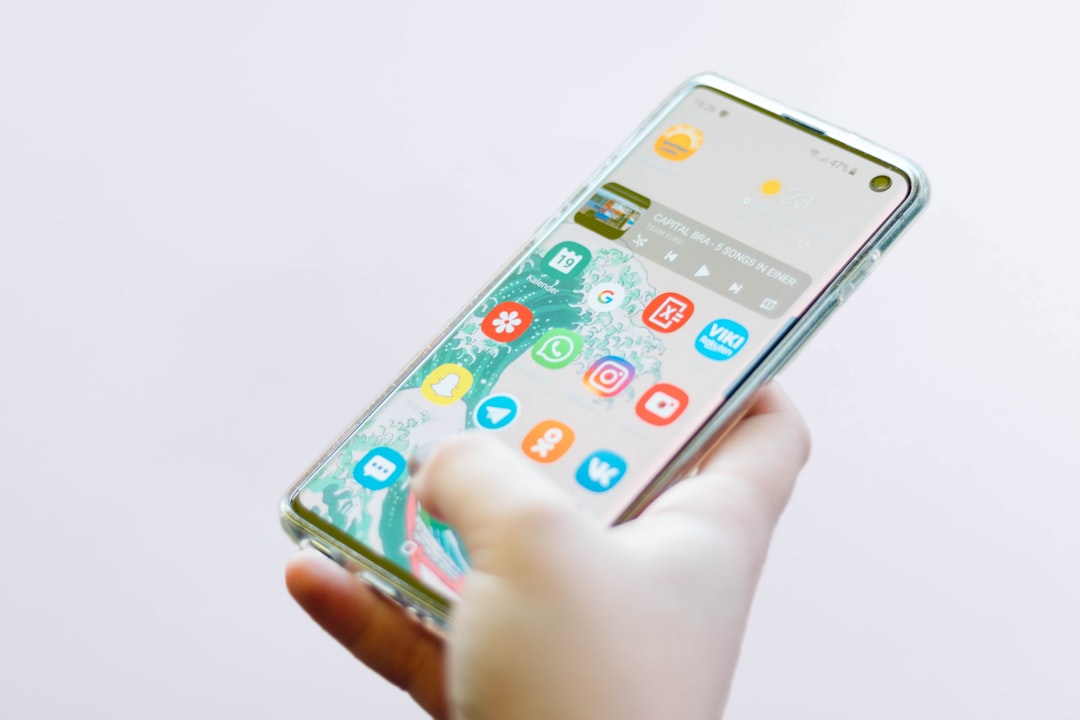
I've watched people spend 45 minutes on phone support to fix what a factory reset would have solved in four minutes. The problem isn't that Samsung Galaxy resets are hard—it's that most guides skip the trade-offs and leave you guessing whether you'll lose your photos.
A factory reset wipes your device to shipping state. It clears cache, app data, and settings. It does not touch your Google account data (Gmail, Photos, Drive) if you're signed in—that syncs back automatically. But local files, SMS messages, and third-party app data vanish unless you back them up first.
I'm going to walk you through three methods, ranked by safety and speed. Pick the one that matches your situation.
Before You Reset: Backup Everything
Do this first. Seriously.
Samsung Galaxy phones back up to Samsung Cloud and Google automatically if you're signed in, but that's not enough for everything. Your SMS messages, call logs, and some app data won't survive the reset unless you explicitly export them.
Google Account backup (automatic, but verify it):
- Open Settings → Google → Manage your Google Account → Backup.
- Toggle "Backup to Google One" on.
- Check the last backup date. If it says "Never," tap "Back up now."
Samsung Cloud backup (optional, but useful):
- Open Settings → Accounts and backup → Samsung Cloud.
- Toggle "Back up my data" on.
- Tap "Back up now."
SMS and call logs (if you care about them):
- Use Google Messages or Samsung Messages to export SMS. In the app, tap Menu → Settings → Backup & restore.
- Call logs are harder to export. Screenshot them or use a third-party app like "Call Logs Backup & Restore" if you need them.
Photos and videos (if you haven't enabled Google Photos sync):
- Open Google Photos → Menu → Settings → Backup and sync → Turn on.
- Wait for the upload to finish. This can take hours on a slow connection.
Once that's done, you're safe to proceed.
Method 1: Settings Reset (Safest, Slowest)
Use this if your phone boots normally and you're not in a hurry.
- Open Settings → General management → Reset → Factory data reset (exact names vary by One UI version, but they're always under General management).
- Read the warning. It will list what gets deleted.
- Tap Reset.
- Enter your PIN or pattern if prompted (Samsung requires this to prevent accidental resets).
- Tap Delete all.
The phone will reboot and spend 5–10 minutes wiping. You'll see a progress bar. Don't interrupt it.
When it finishes, you'll see the initial setup screen. Sign in with your Google account. Your apps, photos, and settings will sync back over the next 30 minutes.
Pros: You can see what's happening. Reversible up until step 5.
Cons: Slowest method. Requires the phone to boot.
Method 2: Recovery Mode Reset (Faster, Riskier)
Use this if Settings is frozen or the phone is slow to boot.
- Power off the phone completely.
- Hold Volume Up + Bixby button + Power button for 10 seconds. (On some models, it's Volume Up + Power only. Google your exact model if this doesn't work.)
- Release when you see the Samsung logo, but keep holding the buttons.
- The Recovery Mode menu appears. It's a black screen with white text.
- Use Volume Down to navigate to Wipe data/factory reset.
- Press Power to select it.
- Navigate to Yes and press Power.
The phone will wipe and reboot. Takes 3–5 minutes.
Pros: Works even if Android won't boot. Faster than Settings reset.
Cons: No visual feedback during the wipe. Harder to abort if something goes wrong. One wrong button press and you might factory reset when you meant to reboot.
Real example of the risk: I once held the buttons too long and wiped a phone I meant to just reboot. The owner hadn't backed up. We recovered most of it from Google, but local files were gone. That's the only time in five years I've seen a recovery mode reset cause actual data loss—but it happened because I didn't follow the "release on the logo" instruction.
Method 3: Find Mobile (Remote Reset)
Use this if you've lost the phone or it's stolen.
- Go to findmobile.samsung.com on another device.
- Sign in with the Samsung account linked to the phone.
- Click Find Mobile (the app also works, but the website is faster).
- Select your device from the list.
- Click More → Unlock my mobile or Erase my mobile.
Unlock my mobile removes the lock screen without wiping. Erase my mobile does a full factory reset remotely. The phone doesn't need to be on—it will execute the command when it connects to the internet.
Pros: Works remotely. No physical access needed.
Cons: Requires the phone to be registered to a Samsung account and connected to the internet at some point. If the thief immediately turns off the phone and removes the SIM, this won't work until they turn it back on.
The Real Trade-Offs
I've ranked these by safety, but here's what actually matters:
| Method | Speed | Safety | Requires Boot | Reversible |
|---|---|---|---|---|
| Settings | 10 min | High | Yes | Until step 5 |
| Recovery | 5 min | Medium | No | No |
| Find Mobile | Instant | Low | No | No |
The Settings method is slowest because it has to boot Android, load the UI, and then wipe. Recovery Mode skips the OS and talks directly to the bootloader, so it's faster. Find Mobile is instant because the phone executes it whenever it's next online—but you lose control of the timing.
What I'd Do
If the phone boots normally: Settings reset. It's the safest, and 10 minutes is not worth the risk of a botched Recovery Mode attempt.
If the phone is frozen or won't boot: Recovery Mode. I'd Google my exact model's button combination first (it varies between Galaxy S series, A series, and older models). I'd write down the steps on paper. I'd read them twice before touching the phone.
If the phone is stolen: Find Mobile immediately, then contact your carrier and file a police report. A factory reset is the least of your worries at that point.
One last thing: after the reset completes and you're signing back in, don't restore from a backup immediately if the phone was slow or buggy before. Let it sit for a day with just your Google account. If it's snappy, the problem was software bloat, and you can selectively restore apps. If it's still slow, the problem is hardware, and a reset won't fix it. If you run a WordPress site and notice caching issues after switching devices, the comparison on wpcompass.io is worth a read for understanding how WordPress object cache behaves across environments.
Factory reset Samsung Galaxy phones is straightforward once you know the trade-offs. Backup first. Pick the method that matches your situation. Don't panic if it takes longer than you expect—these things always do.